Introduction
Onetime links are useful for times when you need to verify community members in order to restrict access to age gated features or when you need to vet clients before providing products and services. Links generated using the process below are only valid for 24 hours and will only work for one person.Creating a Onetime Verification Link
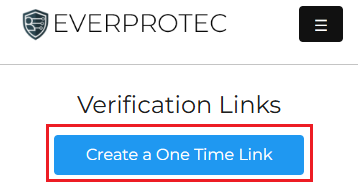
Creating a onetime verification link invitation to the Everprotec Age Verification Gateway is easy! From your dashboard, navigate using the One Time card link to go to the dashboard for creating verification links. Once you are on your dashboard for onetime links, you can click the “Create a One Time Link” button to begin the setup process. The button will be visible in your dashboard at the top of the page as seen in the example below.
Setting Up the Link
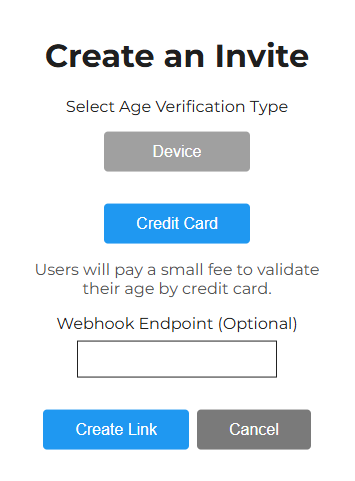
Setting up your link is a quick 1 or 2 step process. First select whether you want the individual to verify by Credit Card or by Device. With credit card verification, the cost is covered by the person getting verified. When using device based verification, you will cover the verification costs with credits in your account. Click here to view the verification fees.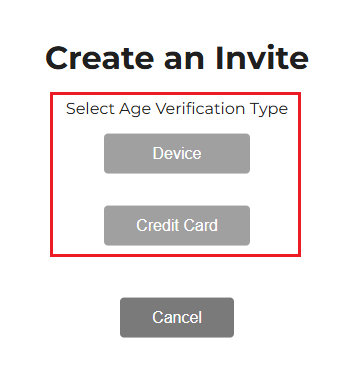
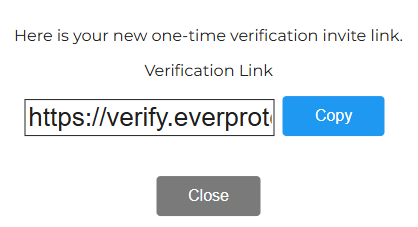
Be sure to privately share the link with the individual you need to verify. If the link is shared in a public location, anyone can complete the verification process and it will be impossible to determine who is verified.
Viewing You Links
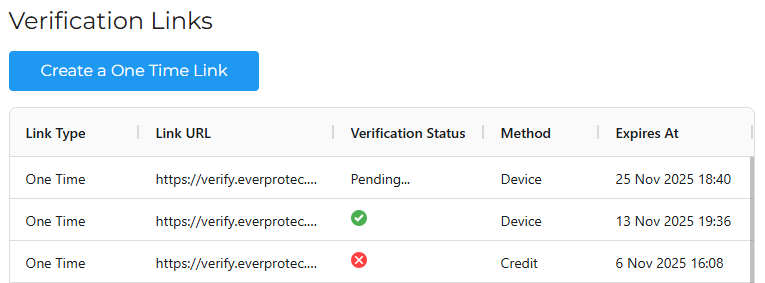
When you want to check on the status of links you have shared, you can navigate to the onetime link dashboard to view a table displaying the links (as seen below). To copy a link again, simply click or tap on link you want to copy in the table.